1. Reopen the last tab that you accidentally closed.
Use Command+Shift+T for Mac OS and Control+Shift+T for Windows. This works with Chrome and Firefox. This is perfect for when you’re comparing products on competing websites and accidentally close the wrong tab.
2. Open incognito windows to simultaneously use two Google accounts.According to Microsoft in 2011, the average person in the US had 3 email accounts; chances are, that number has only gone up since then. A few years back, Google made all their products available to one login username. This means you can use Gmail, Hangouts, YouTube and Drive with the same username. What if your YouTube account and Gmail are on different email addresses? Instead of logging out, use a incognito window to be in both accounts at the same time. Use the short cut Command+Shift+N to open a incognito window in Chrome or a private window in Safari and Firefox.
3. Use password mangers so you never have to remember or type in a password again.Password managers like LastPass and Mitro are great ways to save time and frustration. Password managers work as a plug-in for Chrome or Firefox. To use them, simply sign in to a website like Facebook or Gmail and the manger will ask you if you want to save that password for future use. It works across multiple computers so you can have the same passwords saved at work and at home. Companies have the option of setting up a company account so all passwords are saved with the company and access to them is granted through the plug-in which adds security to the network.
4. Use search function site: to search any domain specifically to find a page you lost.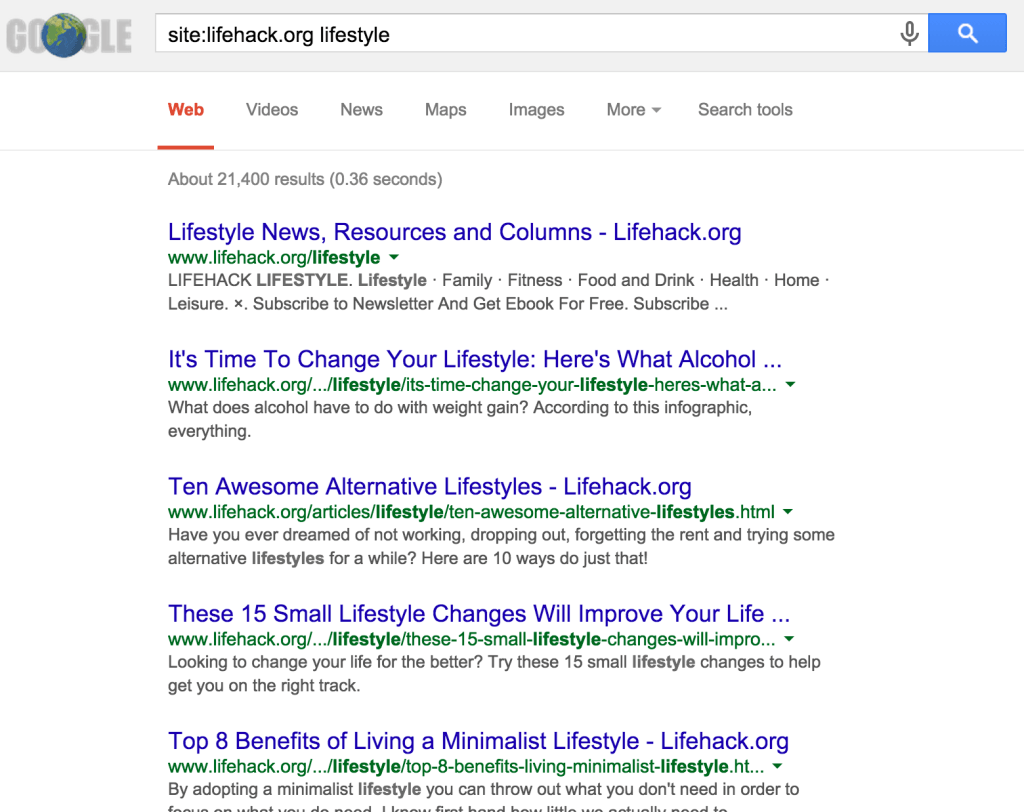 Have you ever been browsing deep in to a website at work and found something interesting that you want to share? Then later, you go back to that site and cant find the path you took to access the page. Use the search operator, site:website.com, in Google search to have google search just that site. You can add a keyword after the operator to narrow down the pages on that site. For example, the search query, “site:lifehack.org”tips to surf “should return this page. Learn more search engine operators here.
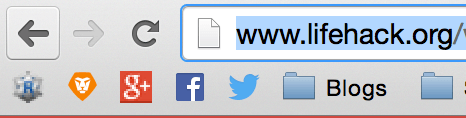 Is your bookmark bar in Chrome getting a little too crowded? Right click a bookmark, select edit, delete the name field and leave it blank, save. This will leave what is known as the favicon which is usually the logo of the site. If you need more room on the bookmarks bar use folders to further organize.
Sick of advertisements on your favorite content sites like Mashable and Digg? Download the plug in Adblock to filter those ads out of your browsing experience. There’re products available that block ads at the network level giving you an ad free experience on any device in your home.
7. Hover links to see their destination pop up in the bottom left corner.Simply hover of a hyperlink in Chrome, then look at the bottom left corner to see where the link will take you. This is good for browsing at work and avoiding NSFW websites.
8. Hold command when you click on a link to open it in a new tab.Want a link to open in a new tab but not sure if it will? Hold Command on a Mac or Control on a PC as you click to have it open in a new tab. You can also configure the scrolling wheel on your mouse to do the same function on click.
9. Highlight a term or phrase that you want to search for in Google, right click and click “search in Google.”Simply highlight any term or phrase, right click and select search in Google, the Google search will open in a new tab, saving you some clicks in the process.